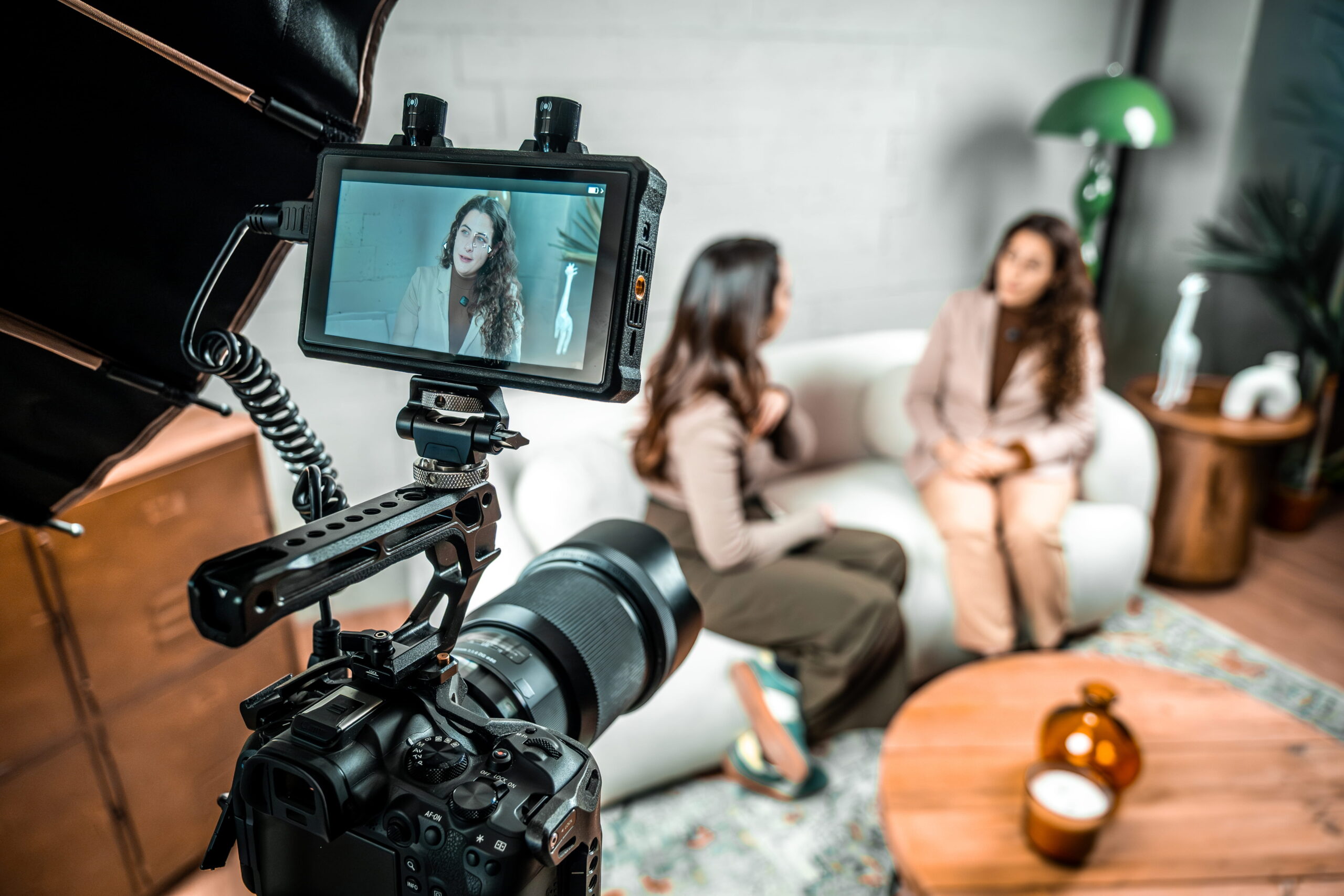
Are you investing in learning how to record a video podcast?
Audiences don’t just want to hear conversations anymore—they want to watch them too.
At Voice123, we’ve worked with brands, marketers, and creators who understand that a successful video podcast is about much more than just adding a camera.
Whether you’re launching your first show or upgrading your existing setup, this guide will show you exactly how to record a video podcast.
How to record a video podcast
If you’re wondering how to record a video podcast, here’s the basic process:
- Plan your episode.
- Choose the right video podcast equipment.
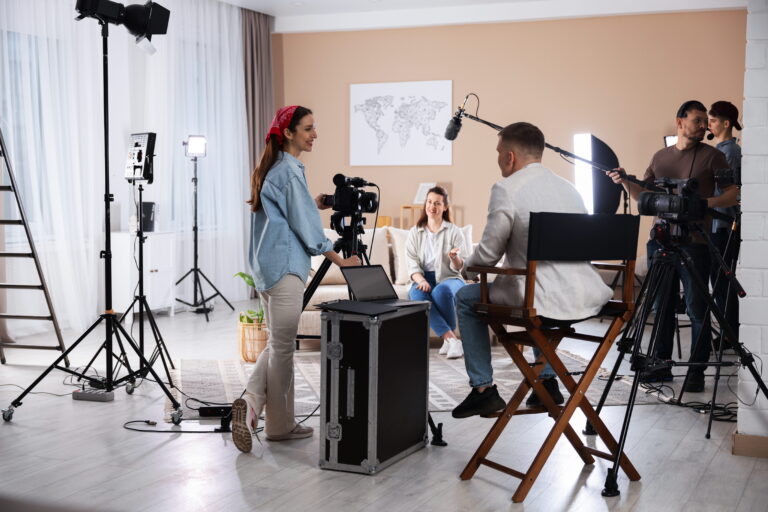
- Set up your camera and lighting.
- Use a quality microphone.
- Select recording software.
- Test your audio and video.
- Record your episode.
- Edit your footage.
- Export in the right format.
- Publish on platforms like YouTube, Spotify, and Apple Podcasts.
Now, let’s walk through each step so you can produce a podcast that looks and sounds professional.
What is a video podcast?
A video podcast combines traditional podcast audio with synchronized video, allowing audiences to either listen to or watch your content. Episodes are usually distributed on YouTube, Spotify video podcast, and Apple Podcasts video.
Unlike a standard audio podcast, a podcast video lets audiences connect with hosts through facial expressions, demonstrations, graphics, and visual storytelling. That extra layer of engagement often leads to higher watch times, stronger audience loyalty, and more podcast monetization opportunities.
If you’re interested in how to start a video podcast, the most important elements are professional audio and video.
What are the marketing opportunities with video podcasts?
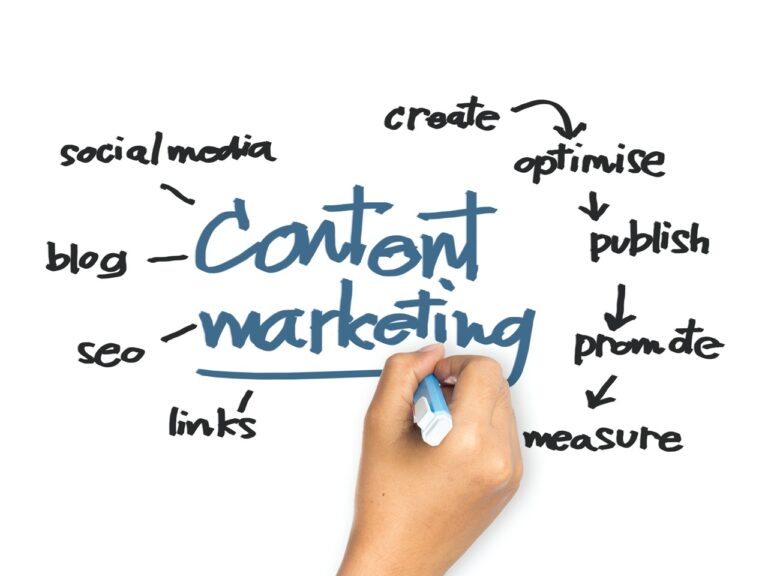
Learning how to record a podcast with video can expand the marketing opportunities for traditional audio podcasts.
A business interview can double as YouTube content and be repurposed into clips for social media. Marketing podcasts can use graphics, slides, and live demonstrations during interviews that wouldn’t be possible with audio-only podcasts.
Video podcast recording enables:
- More discoverability through YouTube search
- Higher engagement on social media
- Better sponsorship opportunities
- Easier content repurposing into clips and Shorts
- Greater brand authority
Learning how to record a podcast with video is easier than ever thanks to affordable equipment and beginner-friendly software.
Step 1: Plan your episode
Start by deciding:
- Who is your audience?
- What problem are you solving?
- Will you interview guests or host solo episodes?
- How long should each episode be?
- Which platforms will you publish on?
Creating a simple episode outline keeps conversations focused without making them sound scripted.
If you’re interviewing guests, prepare thoughtful questions that encourage stories rather than yes-or-no answers. Natural conversations always outperform rehearsed ones.
Planning also makes video podcast recording much easier because everyone knows what to expect before filming begins.
Step 2: Build the right video podcast setup
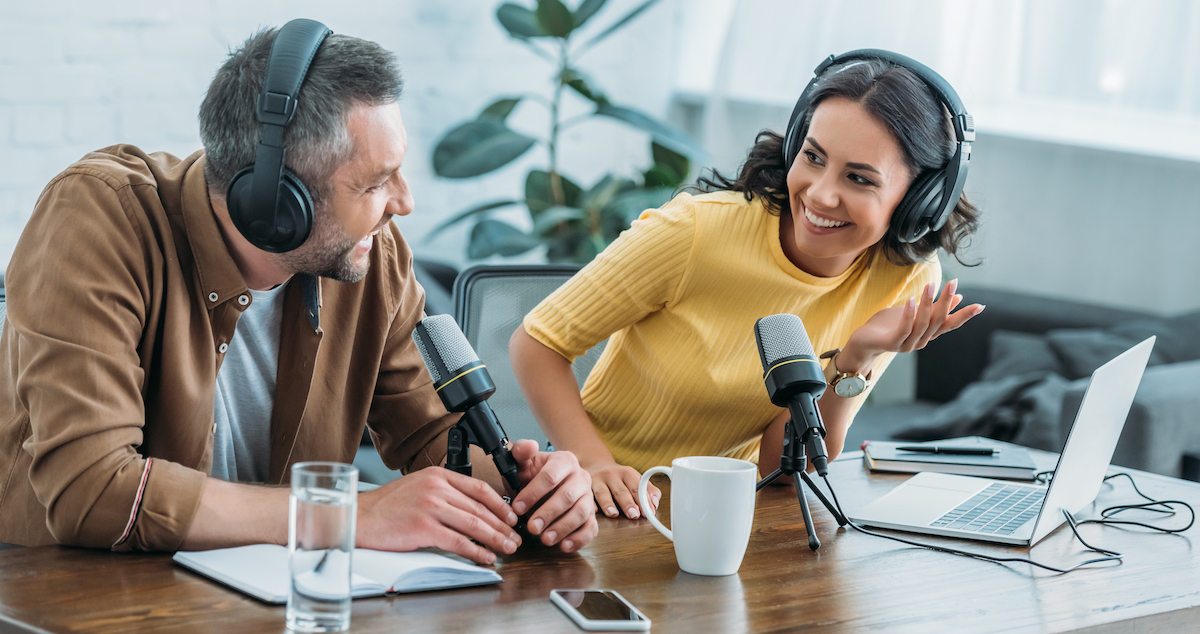
Your video podcast setup doesn’t need to cost thousands of dollars.
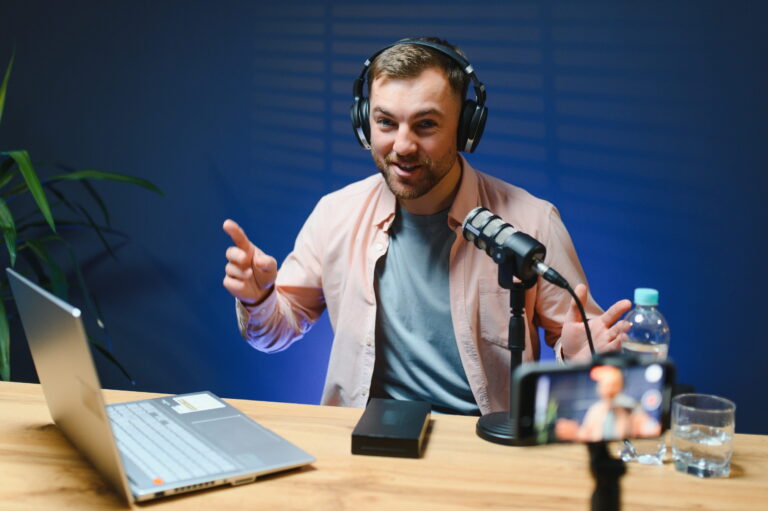
Your basic setup should include:
- Camera
- Microphone
- Lighting
- Headphones
- Recording software
- Quiet recording space
Choose the right video podcast camera
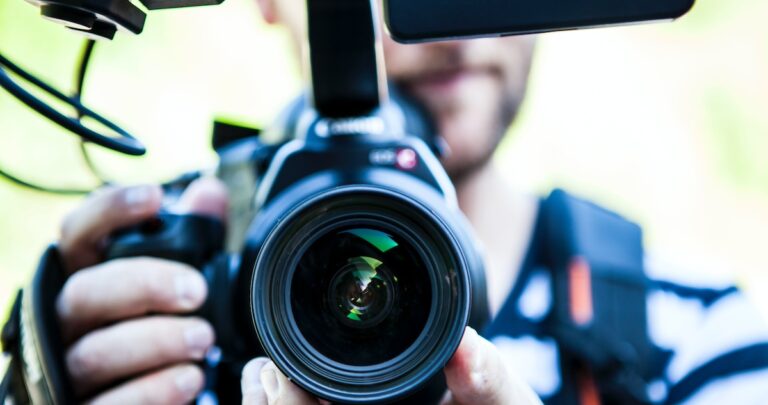
A dedicated video podcast camera can dramatically improve production quality, but you don’t need cinema-grade equipment.
Here are common options:
1. Webcam
Modern webcams offer impressive 1080p or even 4K quality while connecting directly to your computer. They’re best for remote interviews, live streams, and budget setups
2. Mirrorless camera
Many professional creators prefer mirrorless cameras because they provide:
- Better image quality
- Shallow depth of field
- Improved low-light performance
- Professional-looking backgrounds
They’re a worthwhile investment if podcasting is becoming part of your business.
3. DSLR Camera
Still popular for podcasts, although many creators are switching to mirrorless systems for easier video workflows.
4. Smartphone
Yes—you can absolutely use your phone to record a podcast video.
Modern iPhones, iPads, and Android devices produce high-quality video, making them perfect for creators learning how do you make a video podcast on a budget.
Step 3: Invest in professional audio
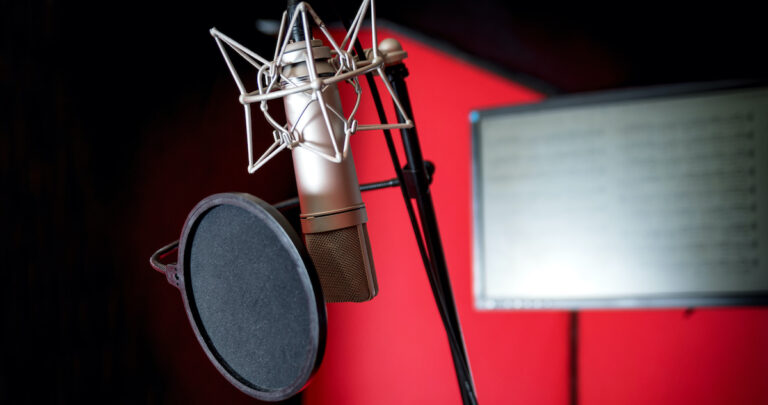
If you’re choosing between a better camera and a better microphone, always buy the microphone first.
1. USB Microphones
Simple plug-and-play microphones ideal for beginners.
Examples include:
2. XLR Microphones
Designed for more advanced creators using audio interfaces.
Popular choices include:
Want more info on video podcasting microphones? Check out this complete guide to the best microphones for podcasting.
Step 4: How to record a video podcast with good lighting
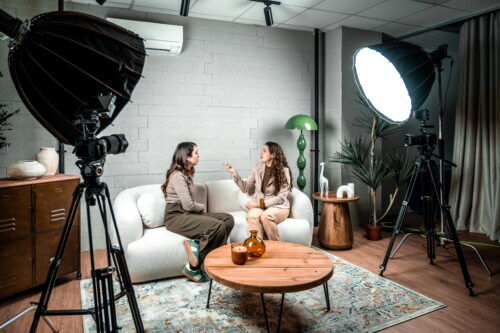
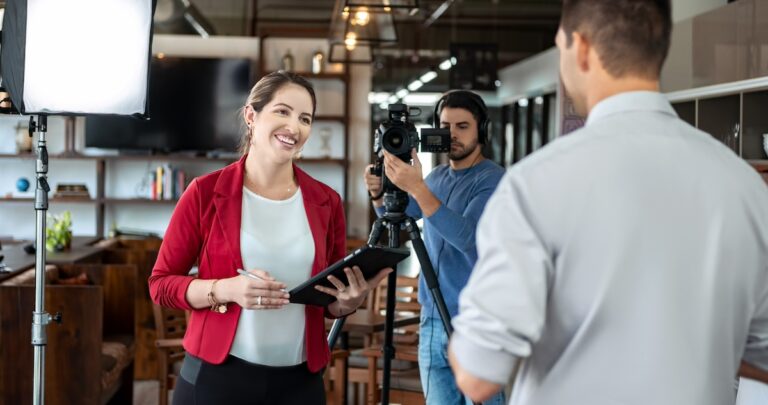
Lighting is often overlooked in video podcast equipment, but it can instantly transform your production quality.
Natural window light works well during the day.
For more consistent results, consider using:
- LED panel lights
- Ring lights
- Softboxes
Position your primary light slightly above eye level and around 45 degrees from your face for a natural appearance.
Even the best video podcast software for beginners needs good lighting to produce professional-looking footage.
Step 5: Choose the best software for editing video podcasts
If you’re looking for the best video podcast software for beginners, consider platforms that make recording both audio and video straightforward.
Riverside
Widely considered the best video podcast software for beginners, Riverside specializes in remote podcast recording.
It records each participant locally, improving quality even if internet connections fluctuate.
Zencastr
Zencastr is Ideal for creators who frequently record remote guests and want cloud-based workflows.
Zoom
Zoom is still widely used because it’s familiar and simple, although many podcasters prefer dedicated podcast platforms for higher recording quality.
OBS Studio
Perfect for creators who want advanced recording controls, multiple camera angles, and live streaming capabilities.
If you’re recording solo or producing educational content, OBS offers tremendous flexibility at no cost.
Choosing the right platform early makes your entire video podcast recording workflow smoother from start to finish.
Step 6: Test your video podcast equipment before recording
Before every recording session, take five minutes to run through a quick checklist:
- Check your microphone levels.
- Confirm your camera is in focus.
- Test your lighting.
- Make sure your headphones are working.
- Close unnecessary apps that could slow your computer.
- Record a 30-second test clip and play it back.
- Remind guests to wear headphones to reduce echo.
It’s much easier to spend a few minutes testing than to re-record an entire episode.
If you’re recording with guests, ask them to do the same. Issues like poor lighting, echo, or unstable internet can often be fixed before you hit Record.
Step 7: How do you make a video podcast sound natural?
Once you’ve learned how to record a podcast with video, don’t over-produce it. The most successful podcasts feel like genuine conversations rather than scripted presentations.
Here are a few ways to improve your video podcast recordings:
- Look toward the camera occasionally, especially during introductions and key points.
- Speak slightly slower than you would in everyday conversation.
- Leave brief pauses between topics to make editing easier.
- Silence phones and notifications.
- Keep a glass of water nearby.
If you make a mistake, don’t stop recording.
Pause, take a breath, and repeat the sentence. During video podcast editing, those mistakes can easily be removed.
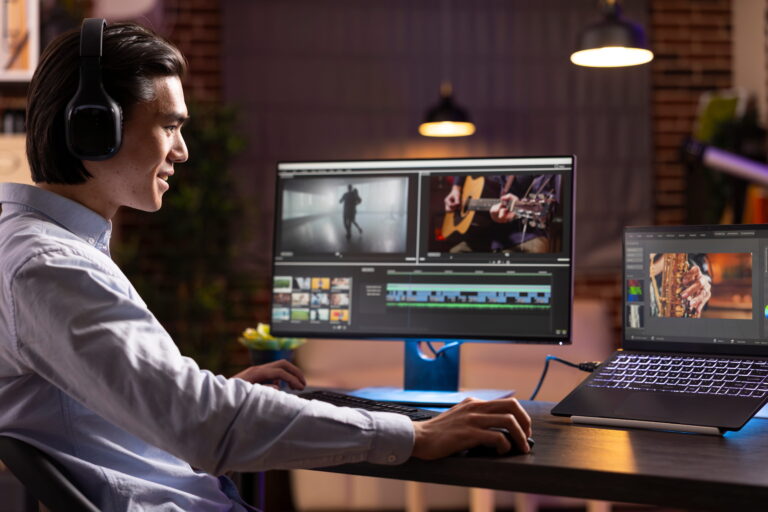
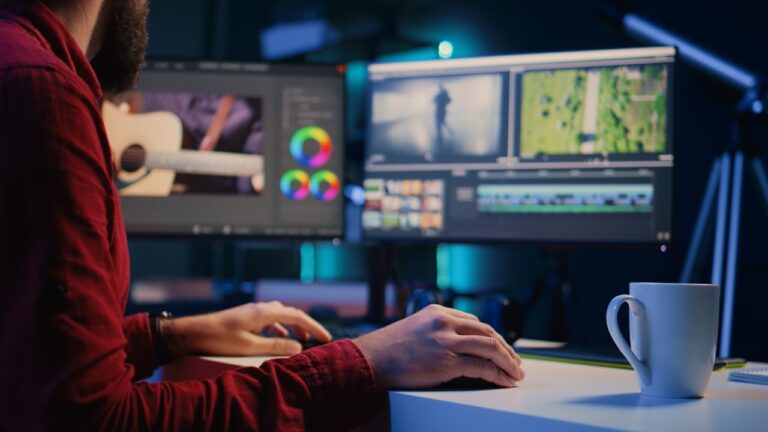
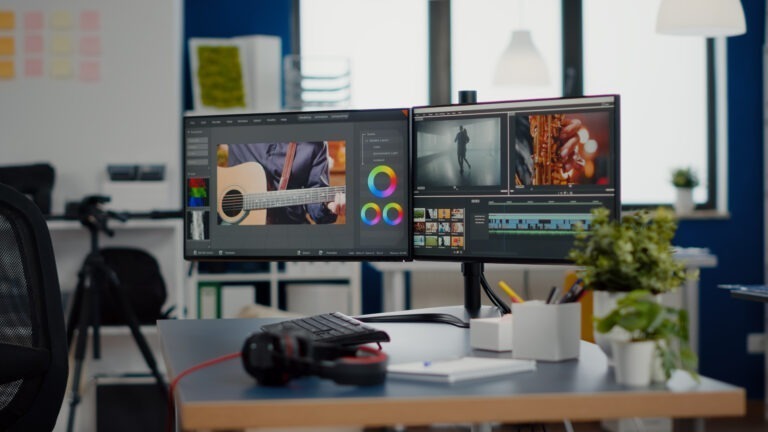
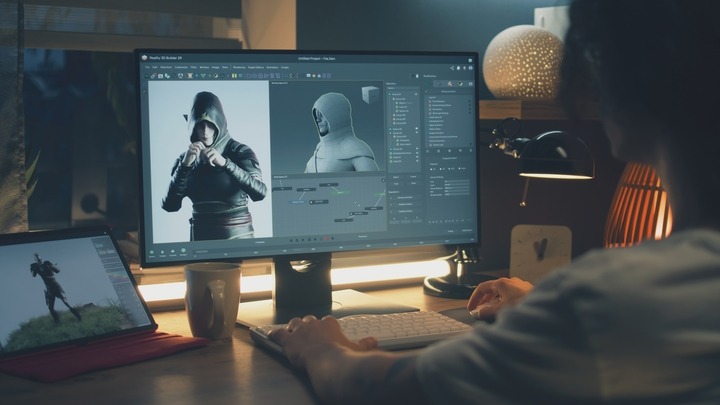
Step 8: Video podcast editing
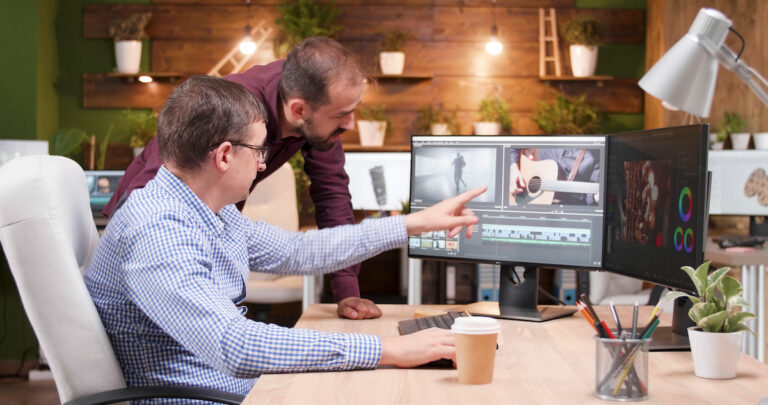
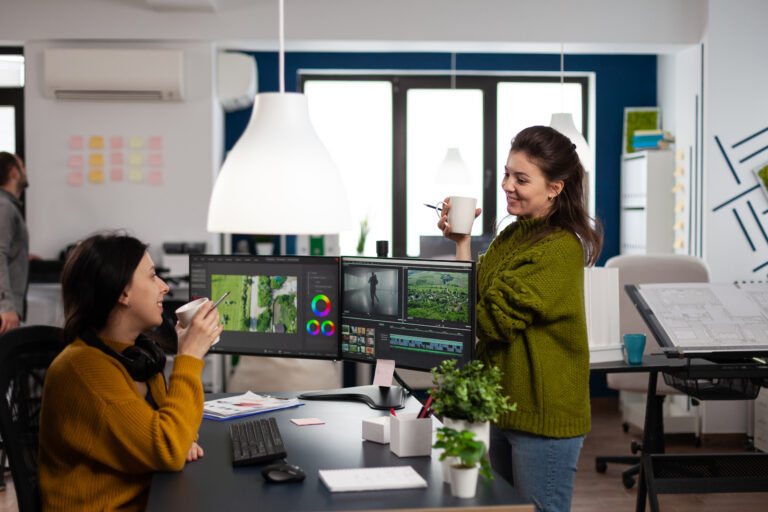
Good video podcast editing transforms raw footage into a polished episode that viewers actually want to watch.
A good editing session typically includes:
- Removing mistakes and long pauses
- Balancing audio levels
- Creating transcripts for subtitles
- Reducing background noise
- Adding intro and outro music
- Including lower thirds and graphics
- Inserting chapter markers where appropriate
- Color correcting your footage
- Exporting for different platforms
What is the best software for editing video podcasts?
Finding the best software for editing video podcasts depends on your experience and budget.
One of the easiest tools for beginners. Its text-based editing lets you edit your episode as if you were editing a document.
Best for:
- Beginner creators
- AI-powered editing
- Automatic captions
The industry standard for professional video podcast editing.
Ideal for:
- Multi-camera productions
- Advanced color grading
- Motion graphics
- Professional workflows
An incredibly powerful free editor that offers professional-grade editing, color correction, and audio tools.
Best for creators who want premium features without paying a monthly subscription.
A favorite among Mac users because of its speed and optimized performance.
No matter which editor you choose, consistency matters more than complexity. Develop a repeatable workflow so every episode maintains the same quality and branding.
Step 9: Publish your video podcast
Once your episode is finished, it’s time to get it in front of your audience.
YouTube remains the largest discovery platform for podcasts, but it shouldn’t be your only destination.
Publish your podcast video across multiple platforms, including:
- YouTube
- Your website
- Spotify
- Apple Podcasts
- X
- TikTok (using short clips)
- Instagram Reels
Spotify video podcast
A Spotify video podcast lets listeners either watch or listen without switching platforms. That’s especially valuable for creators who already have an established Spotify audience.
Apple Podcasts video
Support for Apple Podcasts video gives creators another opportunity to reach viewers on Apple. While many listeners still choose audio-only playback, offering video provides greater flexibility and can help your content stand out.
How to start a video podcast distribution plan
Instead of uploading one long episode and stopping there, repurpose your content into multiple formats:
- Short highlight clips
- Behind-the-scenes moments
- Quote graphics
- Audiograms
- YouTube Shorts
- Instagram Reels
- LinkedIn snippets
One recording session can easily generate weeks of additional content.
Step 10: Keep improving your video podcast
After each episode, ask yourself:
- Was the audio clear?
- Was the lighting consistent?
- Did viewers stay engaged?
- Where did people stop watching?
- Which moments generated comments or shares?
Review your analytics regularly.
Watch time, audience retention, click-through rates, and comments provide valuable feedback that helps shape future episodes.
Small improvements every week lead to dramatically better results over time.
Video podcasting mistakes to avoid
1. Prioritizing video over audio: Your audience might not notice slightly soft lighting, but they won’t forgive muffled audio. Always invest in sound quality first.
2. Recording in the wrong room: Hard floors, empty walls, and large windows create unwanted echo. Adding rugs, curtains, bookshelves, or acoustic panels can soften the echo and improve your video podcasts.
3. Poor camera placement: Position your video podcast camera at eye level because looking up or down at the camera creates an awkward viewing experience.
4. Underestimating lighting: Good lighting often improves production quality more than upgrading to an expensive camera.
5. Using too many visual effects: Simple editing usually looks more professional than excessive animations. Focus on good-quality audio and video, and let authenticity carry the episode.
How do you make a video podcast stand out?
Millions of podcasts compete for attention, so why should viewers choose yours?
The answer is to create a recognizable brand.
Think about:
- Consistent colors
- Professional thumbnails
- Custom graphics
- Branded intros
- Memorable music
- Clear storytelling
- High-quality voice overs
One often-overlooked detail is your podcast intro.
A good introduction instantly establishes credibility and creates a polished first impression. A professional voice actor can deliver intros, sponsor reads, trailers, and promotional content that elevate your production value.
Need a distinctive voice for your next podcast? Voice123 makes it easy to find experienced voice actors for audio and video podcasts.
Search for professional voice actors today!
Final Thoughts
Learning how to record a video podcast doesn’t require a professional studio or an enormous budget. With the right planning, reliable video podcast equipment, and a good workflow, you can create captivating video podcasts.
Whether you’re learning how to start a video podcast, improving your video podcast setup, or refining your video podcast editing workflow, focus on producing content your audience will want to watch.
And when you’re ready to give your show a polished, memorable sound, Voice123 can help you find professional voice actors for intros, sponsored reads, trailers, and branded content.
Post your project today or use Voice123 Enterprise for complete voice over project management.
FAQs
A video podcast is a podcast that includes audio and video. Viewers can watch hosts, guests, demonstrations, or visual presentations while still listening like a traditional podcast on platforms such as YouTube, Spotify, and Apple Podcasts.
A video podcast is often called a video podcast or a vodcast in an informal context.
To record a video podcast, you’ll need a camera, a microphone, recording software, lighting, and a quiet recording space. Plan your episode, test your equipment, record your conversation, edit the footage, and publish it on platforms like YouTube, Spotify, and Apple Podcasts.
A basic setup includes a camera, a microphone, headphones, lighting, a quiet recording environment, and recording and editing software.
Yes. Modern iPhones produce excellent video quality and are more than capable of recording a professional-looking podcast. Pair your phone with an external microphone and good lighting for the best results.
Many podcasters use dedicated recording platforms like Riverside, Zencastr, SquadCast, or OBS Studio. For editing, popular choices include Descript, Adobe Premiere Pro, DaVinci Resolve, and Final Cut Pro, depending on their workflow and experience level.